Window Watch Tab
The Window Watch tab of the property sheet contains the parameters for setting
up the watch condition for this terminal emulator configuration:
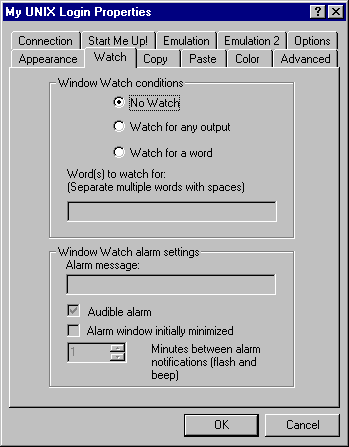
- No Watch / Watch for any output / Watch for a word
These radio buttons select whether a watch is in effect, and if so, whether it
is watching for any output or only selected output.
If you have chosen to watch for a word (or words), enter the specific text to
watch for here. You can specify multiple words to look for by separating them
with spaces. If any of the words are matched in the output from the
application, then the alarm window will be displayed. For example, suppose you have a
long running report process running, and you want to minimize the window, but
have it notify you when the report is finished. Suppose the report process
outputs the word “Finished” when the report completes successfully, and “Error” if it terminates with an error. You would want to be notified in either
case, and so you would enter:
Finished Error
as the words to watch for. This item will be disabled unless the “Watch for a word” watch type is set.
Enter the message that you want in the alarm box that will be displayed when
the watch criteria are met. Since you may have several emulator windows with
their own watch conditions setup, you will want to supply a message which
indicates which window has had its watch condition occur.
Check this box if you want the watch alarm box to sound an audible alarm
periodically.
- Alarm window initially minimized
Check this box if you want the watch alarm box to be minimized when the alarm
first goes off. Instead of popping up over the other windows on the screen, it
will only have a button on the task bar.
- Minutes between alarm notifications
When the watch alarm box is present, it will flash its title bar and beep (if
the audible alarm is turned on) periodically to remind you that the watch
condition has occurred. You can set the interval between these “flashes” and “beeps” by specifying the number of minutes here. The default setting for this
option is 1 minute.