Options Tab
The Options tab contains a variety of miscellaneous configuration options:
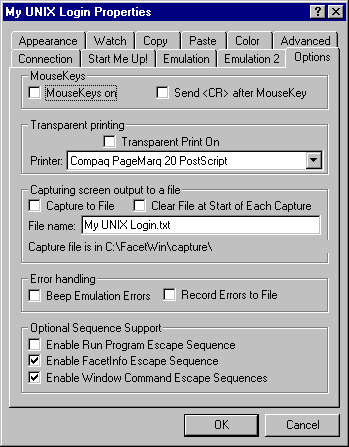 Check this box if you want to turn on the “MouseKeys” feature of the FacetWin DT terminal emulator. This mode allows you to use
the mouse to point at a character on the screen, and cause that character to be “typed” when you click on it (the character is sent when the mouse button comes up).
This mode is useful for operating a menu driven application which prompts for
single character menu commands. Note that when this mode is in effect, you
cannot mark a selection for copying. This mode can also be toggled under the View
menu item. The default setting for this option is off.
Check this box if you want a carriage return to be transmitted after the “MouseKey” character is sent. The default setting for this option is off.
This check box can be used to turn transparent printing on and off. When
transparent printing is on, output is sent to the specified printer rather than
coming to the screen. This will usually be done by escape sequences from the
program running on the server. However, this check box is available for manually
turning transparent printing on and off.
Check this box if you want to turn on the “MouseKeys” feature of the FacetWin DT terminal emulator. This mode allows you to use
the mouse to point at a character on the screen, and cause that character to be “typed” when you click on it (the character is sent when the mouse button comes up).
This mode is useful for operating a menu driven application which prompts for
single character menu commands. Note that when this mode is in effect, you
cannot mark a selection for copying. This mode can also be toggled under the View
menu item. The default setting for this option is off.
Check this box if you want a carriage return to be transmitted after the “MouseKey” character is sent. The default setting for this option is off.
This check box can be used to turn transparent printing on and off. When
transparent printing is on, output is sent to the specified printer rather than
coming to the screen. This will usually be done by escape sequences from the
program running on the server. However, this check box is available for manually
turning transparent printing on and off.
- Printer (for transparent printing)
This selection box lists all the printers available to the PC. By selecting a
printer here, you are only selecting the printer to be used in transparent
printing. The printer used in screen printing is unaffected by this setting.
Check this box if you want all of the output to the screen to be written to a
file. The file will be put in the “Capture” subdirectory of the FacetWin installation directory on your PC. The default
setting for this option is off. Because this file contains each character sent
to the emulator from the server, it will have some unprintable characters in
it. You should also note that leaving this option on during a long emulation
session, can use a large amount of disk space on the PC.
- Clear File at Start of Each Capture
Check this box if you want the capture file to be cleared each time you toggle
capture mode from off to on.
- File name (of capture file)
This is the name of the file that the captured screen output will be written
to. This file will always be put in the “Capture” subdirectory of the FacetWin installation directory on the PC. The default
file name is the name of the current configuration with a “.txt” filename extension. You may used this edit box to save the captured output
to a file of a different name.
Check this box if you want the emulator to “beep” whenever it receives a terminal control escape sequence that it does not
understand. This feature is mainly used with the instruction of FacetCorp support
engineers. The default setting for this option is off.
Check this box if you want the emulator to record terminal control escape
sequences that it does not understand to a file. The file will be put in the “Errors” subdirectory of the FacetWin DT installation directory on your PC. The file
will have the same name as the configuration, except with a “.txt” file name extension. This feature is mainly used with the instruction of
FacetCorp support engineers. The default setting for this option is off.
- Enable Run Program Escape Sequence
The terminal emulator supports an extended escape sequence that may be used by
an application to cause a PC program to be run on the Windows PC. This
sequence will not be recognized by the terminal emulator unless the feature is turned
on by checking this box. The default setting for this option is off. A
description of the use of this feature is found in the section PC Command Feature.
- Enable FacetInfo Escape Sequence
The terminal emulator supports an extended escape sequence that may be used by
an application to determine information about the PC where the terminal
emulator is running. The default setting for this option is on, and you should leave
it on unless instructed by FacetCorp support to turn it off.
- Enable Window Command Escape Sequences
This check box enables a set of escape sequences in the SCOANSI emulation of
the form \E[##y that cause the terminal emulator to call various Window's sizing
functions. Use of these sequences is unsupported, in that the result of the
call depends on the type and version of Windows you are running.