Modify the Settings of an Existing Host/Server Application
There are two ways to modify the settings of an existing host/server
application configuration. They can be changed while the application is running by
modifying its properties, or they can be changed when the application is not
running by simply accessing the application’s property sheet.
You can change the properties while the application is running, and the
changes will be saved in the FacetWin DT terminal emulator configuration file for
that application. Note that some of the connection settings cannot be changed
while the connection is in effect. Other settings, such as the window position
and size can only be changed while the application is running. Any time you move
or re-size the application window, the new position and size is saved in the
configuration for the application.
You can also modify the settings of an existing application without actually
running the application. Go to the FacetWin Terminal Configurations folder by
choosing it in the FacetWin group on the Start Menu:
An Explorer window will display all of the FacetWin DT terminal emulator
configurations that you have created. You can right-click on the configuration you
want to change and the following menu will be displayed:
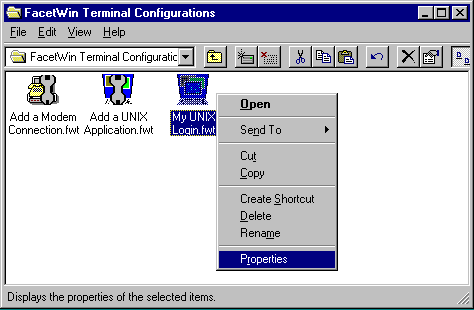 Choose the “Properties” item on this menu, and the property sheet for that file will be displayed:
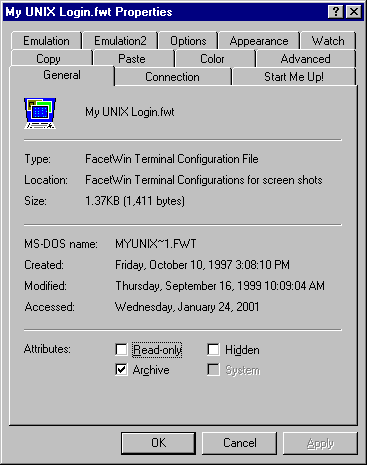 The first tab is the general file tab that the Windows Explorer provides. All
the other tabs are the property sheet tabs that you get when you access the
property sheet while the emulator is running. You can modify all of the items on
the connection tab in this manner, since the connection to the server is not
running when you access the property sheet this way. Note that if the
application is currently running, you cannot change its properties this way. You must
quit the application before bringing up its property sheet by right-clicking on
its icon.
The first tab is the general file tab that the Windows Explorer provides. All
the other tabs are the property sheet tabs that you get when you access the
property sheet while the emulator is running. You can modify all of the items on
the connection tab in this manner, since the connection to the server is not
running when you access the property sheet this way. Note that if the
application is currently running, you cannot change its properties this way. You must
quit the application before bringing up its property sheet by right-clicking on
its icon.