Appearance Tab
The Appearance tab of the property sheet includes items that determine what
font will be used, how it will be sized when the window size is changed, how the
emulation window will behave when scroll bars are applied, whether the status
and tool bars are displayed, and which splash screen is used:
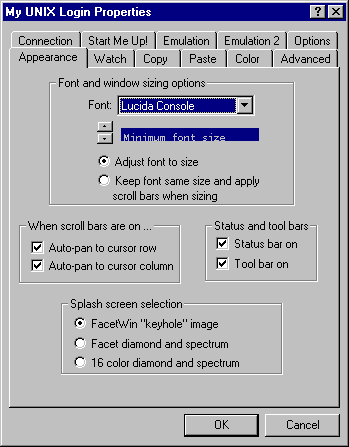 This selection box will contain a list of fonts suitable for use with the
FacetWin DT terminal emulator. Only fixed pitch True Type fonts are included. The
Lucida Console font which comes with FacetWin DT is the default font. This
font scales well, and has a very large set of characters.
This up/down control allows you to select the smallest font size that will be
used when adjusting the font to the window size. If the window is sized such
that the entire terminal screen will not fit at the minimum font size, then
scroll bars will be used even if the “Adjust font to size” setting is selected.
This selection box will contain a list of fonts suitable for use with the
FacetWin DT terminal emulator. Only fixed pitch True Type fonts are included. The
Lucida Console font which comes with FacetWin DT is the default font. This
font scales well, and has a very large set of characters.
This up/down control allows you to select the smallest font size that will be
used when adjusting the font to the window size. If the window is sized such
that the entire terminal screen will not fit at the minimum font size, then
scroll bars will be used even if the “Adjust font to size” setting is selected.
- Adjust font to size / Keep font same size and apply scroll bars when sizing.
These radio buttons select between two modes that determine how the emulator
window behaves when you size it. In the “Adjust font to size” mode, the font size will be made smaller or larger as you shrink or enlarge
the window. In the “Keep font same size ...” mode, scroll bars are applied to the window when it is made smaller and the
font is kept at the same size. In the scroll bar mode, the window cannot be
enlarged beyond a full terminal screen size for the current font size. The
default setting for this option is the “Adjust font to size” mode.
- Autopan to cursor row and column
These settings only apply when the window has scroll bars. If the “Autopan to cursor row” box is checked, then when the cursor is positioned on a row that is not
visible, the window will be automatically scrolled to make the row that the cursor
is on visible. Similarly, if the “Autopan to cursor column” box is checked, then the window will be automatically scrolled to make the
column that the cursor is on visible. The default setting for both options is on.
Check this box if you want the FacetWin DT terminal emulator status bar to be
displayed. The status bar is located at the very bottom of the terminal
emulator window. It displays information about the connection, and also displays
instructions during the marking of a selection for copying. The default setting
for this option is on.
Check this box if you want the FacetWin DT terminal emulator tool bar to be
displayed. The tool bar provides a quick way to perform the most common
functions of the emulator. The default setting for this option is on.
Use these radio buttons to select which “splash screen” you want to be displayed when the first copy of the terminal emulator starts
up. This is also the screen presented when you choose Help/About FacetWin DT
on the menu. The FacetWin DT “keyhole” image is the image on the CD packaging and manual cover. The “diamond and spectrum” image is the image printed on the CD itself. The “16 color diamond and spectrum” is the image printed on the CD, but in only 16 colors. Use this 16 color
image if your display adapter only displays 16 colors, or if you wish to avoid the
palette change when the splash screen is presented on a 256 color display.